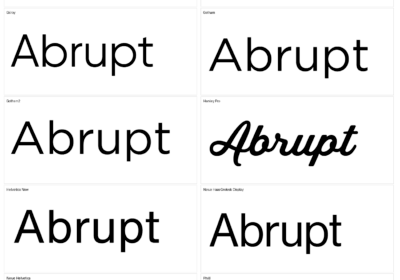
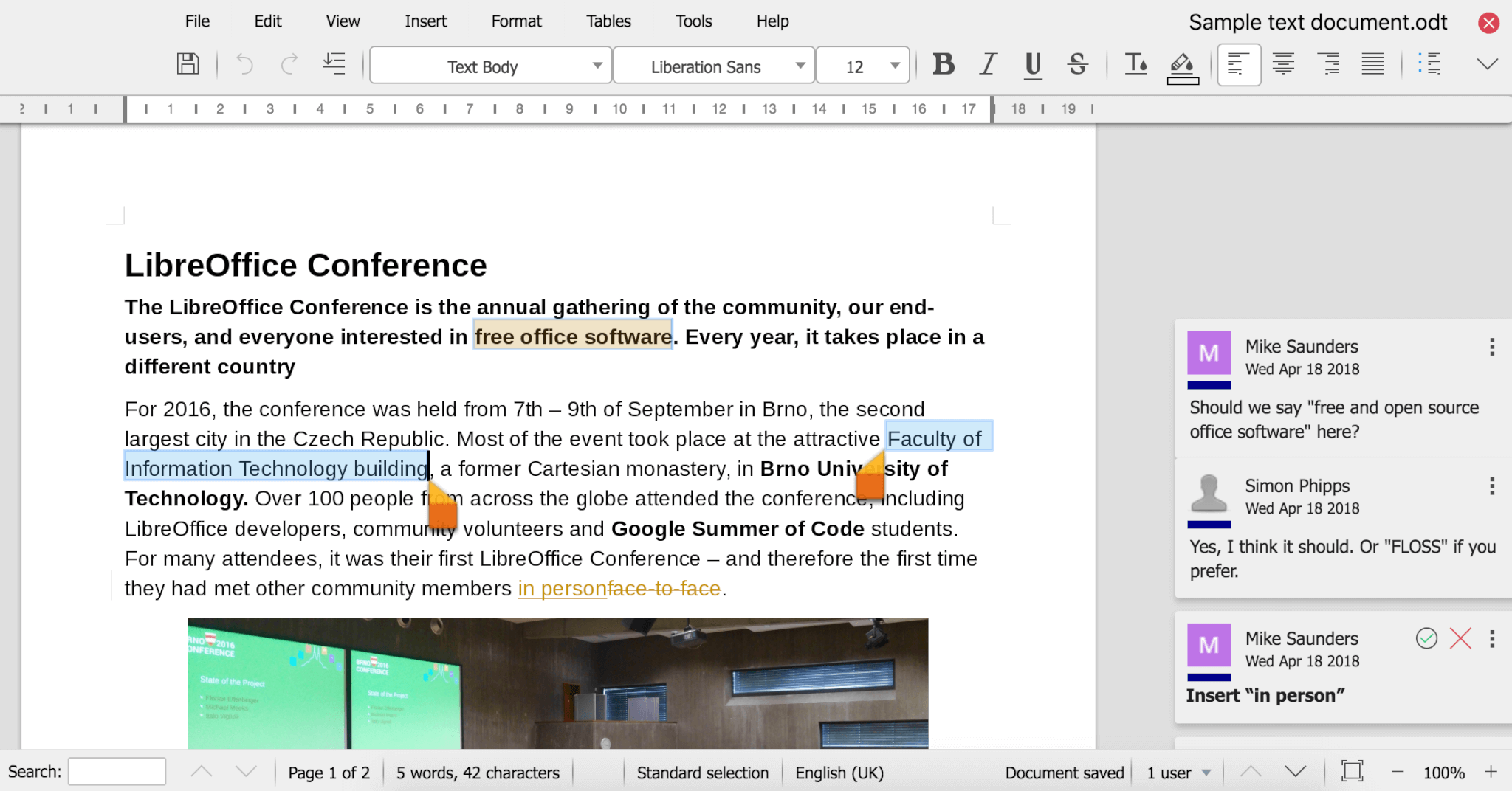
Find below the easy way to add fonts to LibreOffice.
In plus, you will find out where to look for awesome new fonts.
Adding fonts to LibreOffice is a free-of-pain process that it will take a couple of minutes or even less if you have the fonts ready to be installed.
Most of the time is spent finding cool new fonts, not installing them as the installation process is straightforward, simple, and quick.
Before going to the article’s subject, let’s first discuss about LibreOffice, there might be people that don’t know too much or anything at all about this software.
What is LibreOffice?
If you never heard of LibreOffice, you just found a hidden gem.
And I am not kidding or using big words for nothing.
LibreOffice is a free and open-source office productivity software with a huge community of top developers and users.
The software works perfectly on Linux, Windows, and Mac computers, and in plus you don’t need an internet connection.
LibreOffice uses the OpenDocument standard but it works excellently with all the other file formats, including Microsoft Office file formats.
Have in mind that this is a superb alternative to paid office software.
And not just because of the price, but also because it is better made from some points of view (speed, reliability, interface, and some other things).
The easy way to add fonts to LibreOfficeYou know that I said that LibreOffice works with Linux, Windows, and Mac computers.
In this article, you will find out how to add fonts on LibreOffice for both Windows and Mac, as the process is almost the same, only some small things are a bit different.
Here are the 4 steps.
1. You will always start by downloading the font you want to install on LibreOffice.If you have the font ready, then you can head over to the next step.
If not, you can look for fonts on plenty of places (Google Fonts, search on the web, etc.), or you can do what we do at WhatFontIs.
We browse the web and identify fonts from images.
The process is free, simple, and quick (under 60 seconds), and no registration is needed.
After you identify the font you like, download it and go to the next step.
2. Unzip the font fileExtract the ZIP file so you can have the font file ready.
3. Install the fontsFor Windows users, select the font group, right click, and hit install.
Mac users, select all the fonts, then double-click and choose Install Fonts.
If you are asked if you want to move forward with the font installation, hit yes.
Always get fonts from reputable sources, otherwise you could install not just a font, but also some viruses.
4. Font are now available in LibreOfficeNow open LibreOffice and check if the fonts you just installed are visible in the font selection.
All of them should be there.
ConclusionsThere are so many fonts available in the world, and we should all benefit from that.
Identifying fonts from images, getting paid fonts or free fonts, or even creating our own fonts are all simple tasks in nowadays.
So getting new fonts is simple, and adding them to LibreOffice and other software is also simple.
Add all the fonts you like to LibreOffice, maybe you have fonts that you are using in Microsoft Office suite and you want them in this new software that you just installed on your computer.
Have in mind that having all the fonts you like on LibreOffice will make the transition much easier.

I'm a programmer at heart. But in my 20s, I realized there was more to the world of fonts than just Courier.
Driven by endless curiosity, I built a system to explore them.
That project grew into one of the world’s leading font identifier platforms: www.WhatFontIs.com.
By 2024, WhatFontIs is helping nearly one million designers—famous or not—discover the names of the fonts they need.