Learn how to find fonts (step by step)
Pick a topic from the left menu. Each guide is designed to help you get better results faster.
Find a font when the text is rotated in 3 steps
Follow the steps below, then use the tool to check matches and alternatives.
Step 1 Upload a screenshot
Go to uploadUpload a screenshot of the rotated text. Crop tightly around the word (less background = better results).
Step 2 Rotate the image in “Edit image”
Click Edit image and use Image Rotate until the text is horizontal. Then click Use Image and enter the character corresponding to each cropped image.
Step 3 Review matches and alternatives
We identify the font and suggest alternatives if the exact match isn’t found. Browse results and pick the closest option.

Too hot to work? Play a font game instead 🏖️
WhatFontIs Blog: WhatFontIs vs WhatTheFont: We Tested Both on MyFonts' Top 10 Bestsellers
Help your fellow font-seekers if you think you can recognize the font. Earn some good karma by doing it :-) Answer & Help

Yet sometimes the images are very complex, so other users need a bit of help.
If you recognize the font from the samples posted here don't be shy and help a fellow designer.
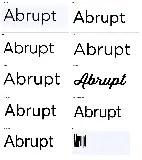
Thousands of designers (famous or not) use the image font detection system to find a font or similar free fonts from an image. Although we have the largest database of fonts, the search for a font from an image gets mixed results like the image above.
Recognize the font? Browse forumHave a font you want to use on the web?
Webfont Generator