Learn how to find script fonts (step by step)
Pick a topic from the left menu. Each guide is designed to help you get better results faster.
Script Font Finder in 3 steps
Follow the steps below, then use the tool to check matches and alternatives.
Step 1 Upload a screenshot of the script font
Go to uploadUpload a clear screenshot containing the script font. Crop tightly around the word for faster matching.
Step 2 Improve results with “Edit Image”
Click Edit Image and draw a line between characters to separate them. Then click Use Image and enter the character for each cropped image.
Step 3 Review matches and alternatives
We identify the font and show similar options. If the exact match isn’t found, browse alternatives and pick the closest one.

Too hot to work? Play a font game instead 🏖️
WhatFontIs Blog: Eska: The 1975 Polish Student Typeface That Just Came Back to Life as a Free Font
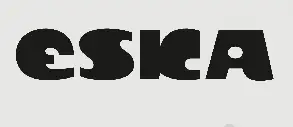
Help your fellow font-seekers if you think you can recognize the font. Earn some good karma by doing it :-) Answer & Help

Yet sometimes the images are very complex, so other users need a bit of help.
If you recognize the font from the samples posted here don't be shy and help a fellow designer.
Thousands of designers (famous or not) use the image font detection system to find a font or similar free fonts from an image. Although we have the largest database of fonts, the search for a font from an image gets mixed results like the image above.
Recognize the font? Browse forumHave a font you want to use on the web?
Webfont Generator